 Vanda Svobodova
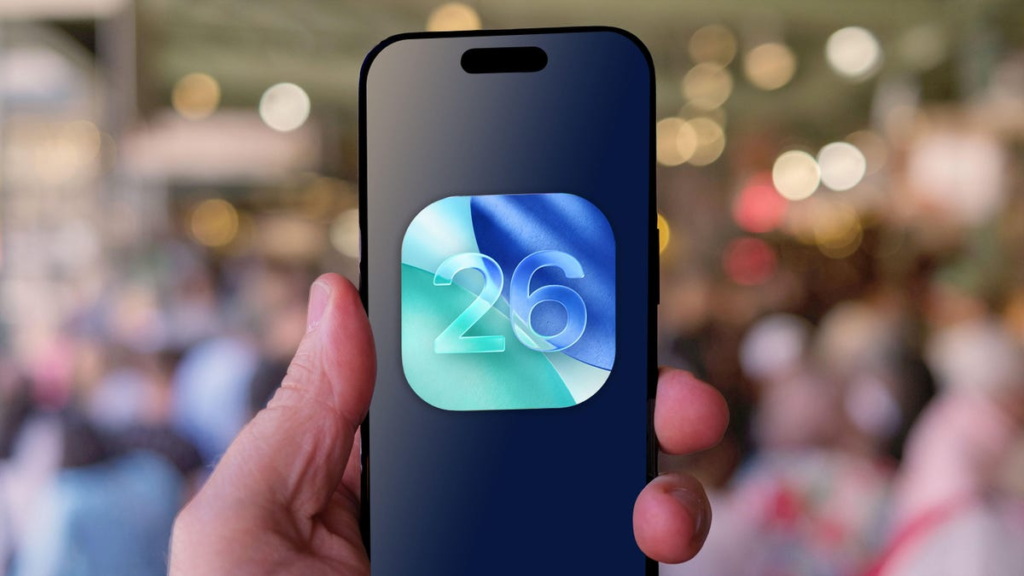
Apple’s iOS 26 update has introduced a groundbreaking feature that’s catching the eyes of tech aficionados and design enthusiasts alike. The latest update allows iPhone users to customize their home screens with a striking “liquid glass” effect, offering a unique aesthetic that combines minimalism with innovation. If you’re eager to redefine the look of your iPhone and explore the full potential of this new feature, here’s a comprehensive guide to get you started.
Understanding the Liquid Glass Effect
The liquid glass effect is a fresh addition to Apple’s customization suite, designed to give the home screen icons a transparent and fluid appearance. It enables icons to blend seamlessly with the wallpaper, giving a more immersive and sophisticated look. The result is a sleek, modern design that elevates the overall aesthetic of your device, making it look both cutting-edge and minimalist.
Setting Up Your Liquid Glass Home Screen
Before diving into the customization process, ensure your iPhone is updated to iOS 26. This version is required to access the new home screen functionalities. If your device is compatible, follow these steps to activate the liquid glass effect:
Step 1: Update Your Device
- Navigate to Settings on your iPhone.
- Select General, then tap Software Update.
- Follow the prompts to download and install iOS 26.
Once the update is complete, you’re ready to explore the new customization features.
Step 2: Choose a Wallpaper
The choice of wallpaper plays a crucial role in enhancing the liquid glass effect. Opt for images with subtle gradients or abstract designs that complement transparent icons.
- Open the Settings app and go to Wallpaper.
- Select Choose a New Wallpaper and pick from Apple’s gallery or your personal collection.
- Position and pinch the image to fit your screen properly.
- Tap Set and choose Set Home Screen to apply.
Step 3: Apply the Liquid Glass Icons
With the correct iOS version and a suitable wallpaper, you can now engage the new icons:
- Press and hold any icon on your home screen until the icons start to jiggle.
- Tap the Customize option that appears at the top of the screen.
- Select Liquid Glass from the available styles.
- Adjust the transparency level according to your preference using the slider provided.
- Once satisfied, tap Done to save your changes.
Maximizing the Benefits of Liquid Glass Icons
Beyond mere aesthetics, the liquid glass icons offer practical benefits such as increased focus and reduced screen clutter. By creating a consistent and harmonious visual layout, users can experience improved navigation and a more engaging interaction with their apps.
Organizing with Folders
To further enhance usability, consider grouping apps into folders. This reduces clutter and makes it easier to find and launch apps. Here’s how:
- Drag one app icon over another to create a folder.
- Repeat to add more apps to the folder.
- Name the folder appropriately to describe its contents.
- Utilize multiple pages within folders for expansive app collections.
Enhancing Productivity
Custom icons and organized folders can enhance productivity by simplifying app access and usage. For professionals and multitaskers, this sleek interface can lead to a more streamlined workflow.
With these steps, your iPhone’s home screen can transform into a canvas of efficiency and style, opening the door to both improved functionality and personalization. The liquid glass effect not only gives a fresh look but also represents Apple’s ever-evolving approach towards user-centric design. Dive in, experiment, and enjoy a state-of-the-art home screen that truly reflects your personality and style.
, image: https://www.theverge.com/tech/713748/ios-26-iphone-liquid-glass-home-screen-how-to