 Vanda Svobodova
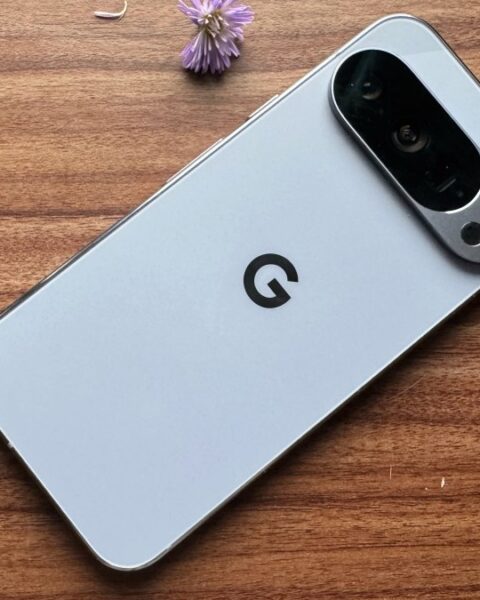
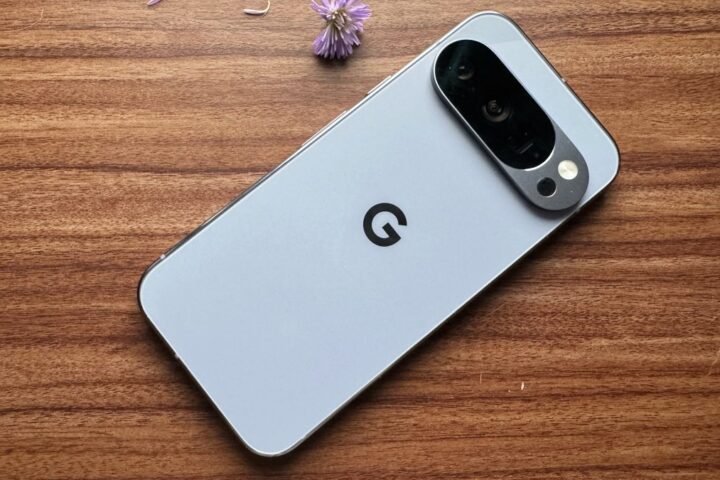
As smartphone technology evolves, personalization becomes a hallmark feature for users who seek a more tailored experience. Google’s latest addition to the Pixel series, the Pixel 10, offers an innovative way for users to customize their device’s lock screen widgets, enhancing both aesthetics and functionality. With the increasing importance of intuitive access to information, learning how to manage these widgets effectively can greatly enhance the user experience.
Understanding Lock Screen Widgets
Lock screen widgets on the Google Pixel 10 provide quick access to apps and features without requiring users to unlock their devices. These widgets serve as shortcuts for frequently used apps and functionalities, such as weather updates, calendar events, and music controls. As users interact with their devices multiple times during the day, the ability to customize what appears on the lock screen can save time and improve productivity.
By offering customization options, Google empowers users to tailor their lock screens to fit their specific needs and preferences. Whether it’s prioritizing productivity apps or maintaining a minimalist look, users have the flexibility to assemble a screen that supports their lifestyle.
Steps to Change Lock Screen Widgets
To begin customizing the lock screen widgets on your Google Pixel 10, follow these straightforward steps. Ensuring that your device is updated to the latest software version will optimize usability and access to the newest features.
- Access the Lock Screen Settings: Start by navigating to your device’s settings. You can do this by pulling down the notification shade and tapping the gear icon.
- Select the Display Option: Within the settings menu, find and select the ‘Display’ option, which contains various settings related to your screen.
- Choose Lock Screen Widgets: Scroll through the display settings until you locate the lock screen settings. Here, you’ll find the option to manage your lock screen widgets.
- Customize Widgets: Once in the lock screen widget section, you’ll be presented with options to add, remove, or rearrange widgets to your liking.
Adding New Widgets
To add new widgets, tap the ‘Add Widget’ button and browse through the list of available widgets. Select the widgets you want, and they will appear on your lock screen. Make sure that your most-used apps are added for convenient access.
Removing and Rearranging Widgets
If there are existing widgets that you no longer need, you can easily remove them. Simply hold the widget and drag it to the ‘Remove’ area. To rearrange widgets, press and hold a widget, then drag it to your preferred position on the lock screen.
Maximizing the Benefits of Customization
Utilizing the lock screen widgets effectively can streamline your daily routines. For professionals who rely on instant access to information, placing productivity tools like email or calendar widgets can lead to more efficient task management. Music enthusiasts might prioritize audio control widgets to manage playlists and tracks swiftly.
Moreover, Google’s integration of AI and machine learning ensures that your Pixel 10 can adeptly suggest widgets and apps based on your usage patterns, taking customization a step further by learning from your behavior over time.
Another key advantage of customizing your lock screen widgets lies in the potential for enhanced security and privacy. By strategically selecting which information is accessible from the lock screen, users can maintain a balance between convenience and data protection.
In the era of smart gadgets, having control over device customization is more than just an aesthetic preference; it’s a component of practical utility. Being able to adapt your lock screen to match your ever-evolving needs is a testament to the versatility and user-centric design found in Google’s Pixel 10.
As users become more accustomed to having their technological environments reflect their personal preferences, the demand for customizable features continues to rise. Whether for personal or professional purposes, having a lock screen tailored to specific needs can make a significant difference in the overall smartphone experience. Google’s Pixel 10 stands at the forefront of this trend, offering a seamless blend of functionality, customization, and innovation that modern users crave.
, image: https://www.androidpolice.com/how-to-change-pixel-10-lock-screen-widgets/